

VS Code extension
The Screenplay extension for Visual Studio Code (cratis.screenplay) opens a .play file on the event model board, the board Cratis Studio draws. The model reads as a timeline:
- modules and features across
- each slice as a column holding its command, the events it produces and the read model it builds
- the specifications of each slice beneath it
- the screens of each slice, drawn as a prototype in the row of each persona who may use it, above the slice
The text stays the source of truth. The board redraws as you edit, and the language support (highlighting, completion, hover and diagnostics) is one click away.
code --install-extension cratis.screenplayOpen your model folder, then a .play file. Choose Show Source to edit beside
its board. For other places to open the same board, see
See your event model.
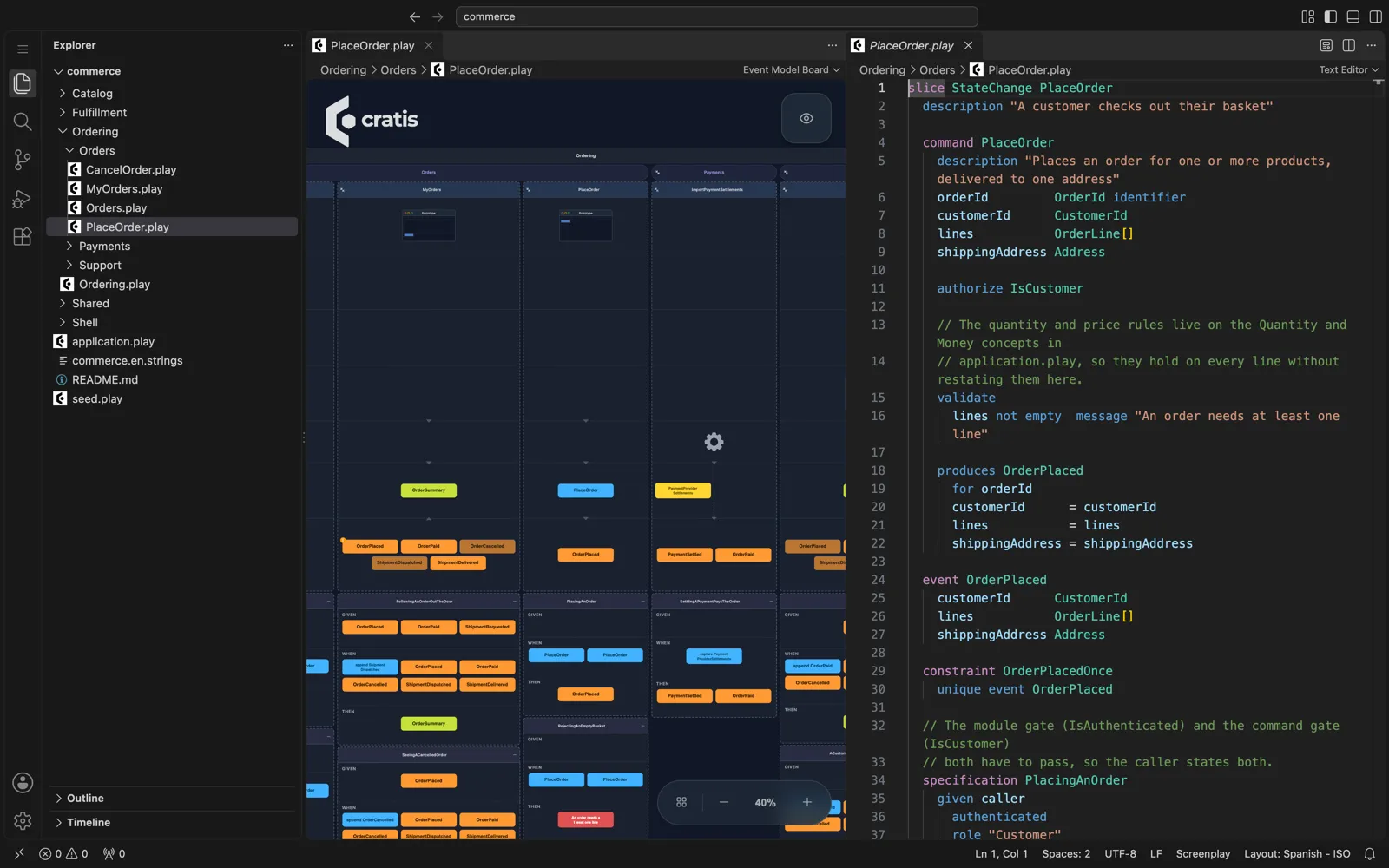
Extension 4.48.1 in code-server, showing Commerce. Newer versions focus the board
on the open file’s slices; open application.play for the whole application.
Restricted Mode
Section titled “Restricted Mode”In an untrusted workspace, the board and local language assistance (including
TypeScript diagnostics) remain available. C# repair processes require workspace
trust and explicit User settings; they never run in Restricted Mode. VS Code
ignores workspace overrides for screenplay.sourceRoot and the repair settings
until you trust the workspace. A source-root override can point outside the
workspace, so review it before granting trust.
Concept compliance
Section titled “Concept compliance”Hover describes pii/personal and secret as ESM v13 classifications. Consumers must explicitly admit that version. Identity and enum compliance are refused; events combining personal or explicitly subject-scoped secret values with an explicit subject mark are refused by the C# binder until lineage is admitted. Source/editor validation does not perform executable binding. Reasons remain report-only, and reference outcomes are unchanged; see Concepts.
Read-model keys and event routing
Section titled “Read-model keys and event routing”Monaco and VS Code recognize trailing read-model key modifiers, query and reads by blocks, production stream overrides and observer from filters. Completion offers key parts in a by block and sources and streams in route/filter positions. Hover distinguishes authoring-only composite keys from ESM v10 routes and filters.
Both editors highlight member = N enum lines, complete numbered members and show their numbers in concept hover. Shared validation reports mixed numbering (PLAY0667), duplicate numbers (PLAY0668), int32 overflow (PLAY0669) and malformed numbers (PLAY0670). The stored-enum Information hint (PLAY0671) comes from opt-in completeness checks and is preserved when supplied to editor validation; ordinary validation does not emit it. That hint suggests the opt-in MCP numbering refactoring, not a correctness quick fix. Pins equal to positions preserve the prior executable version, bytes and revision; non-positional numbers bind as ESM v12. Consumers must explicitly admit v12 before accepting these models.
The editors preserve native PLAY0661, scoped PLAY0662 and PLAY0666 findings. They do not synthesize these whole-model C# checks. Saved-file C# code actions can preview deterministic command-read key completion (PLAY0661) and removal of a redundant production route (PLAY0664). Queries and trigger reads are not repaired. These actions use revision-checked proposals without the PLAY0166/PLAY0478 attachment-evidence pins. Review all source and identity bytes before explicit Apply.
The board shows named key parts, each production override and observer descriptions. See Read-model keys and Event sources.
Generated values and responses
Section titled “Generated values and responses”The editor recognizes generated command values and response contracts, including fixture and assertion fields, inferred response types and generated-not-input hints. Completion uses the current source, including unsaved edits. Hover and completion identify these constructs as executable in ESM v7; the editor no longer reports syntax-only response information markers. Compiler diagnostics validate syntax, not semantic binding or execution: pre-generation references and generated-concept rules are checked by the C# semantic binder. Missing reference-execution fixtures and other unadmitted constructs still prevent successful execution.
The board leaves generated values out of command request schemas and lists generated values and returns in command details. It does not create response events or emit official response types. TextMate highlighting treats ambiguous two-token returns lines conservatively; returns @name makes response intent explicit.
Public-event authoring (syntax-only)
Section titled “Public-event authoring (syntax-only)”Monaco and VS Code recognize standalone public event declarations and event Name from "origin". Origins are opaque contract metadata, not links to files. Public events retain event-body completion, and event hover includes visibility and origin. Translate slices offer direction inbound or direction outbound; other slice types do not offer direction. Invalid headers and directions use the existing compiler diagnostics (PLAY0005, PLAY0018, PLAY0027). TextMate highlighting keeps public-event metadata and event-body directives distinct from property-shaped names.
Both editors validate public/private operational event boundaries (PLAY0607–PLAY0620 and PLAY0687) against the assembled model, including imported files and unsaved buffers. Public translations require explicit direction; outbound translations must produce exactly one local public event type. Unresolved or ambiguous references remain unclassified.
This is authoring support, not transport or execution support. The board document preserves nondefault metadata without inferring delivery guarantees. The C# binder refuses these declarations with PLAY0268. See events and imports for the contracts.
Event source and stream authoring
Section titled “Event source and stream authoring”Monaco and VS Code use typed source declarations and command routes from the complete input, including current unsaved buffers. They offer exact Source.Stream references and proven compatible command sources for streamId, with nominal types preserved. Composite streamId blocks offer scalar-subset declaration types, unmapped route part names, compatible command paths and specification literal snippets. Hover exposes declared parts, part types and mapping sources. Contextual highlighting distinguishes the header from part names, including parts named streamId or stream. Source/stream hover describes authored identifier/key types; contextual tokens do not globally reserve property names. Navigation requires a unique physical source and stream plus authoritative placement, and points to the actual identifier in its original document. Duplicate parents, competing value-type interpretations, comments and fences do not become guessed links.
The C# binder and reference runner admit routing in executable semantic model (ESM) v8, including specification routes and composite stream ids. Editor validation and the board do not execute routes. Existing command details show the authored stream and readable key expression, never inferred effective destinations, new event cards or successful execution states. No automatic source/stream rename, route selection or inferred-routing inlay is provided. Saved-file C# repairs can remove an identical production override with PLAY0664. See the source/stream support matrix.
Operation and system intent (syntax-only)
Section titled “Operation and system intent (syntax-only)”Both Monaco and VS Code recognize systems and operations, inline/standalone declarations and operation specification steps. Assistance resolves explicit declaration kinds over the assembled application and uses the current typed source for command inputs, including unsaved and import-placed files. Input/source suggestions retain concept, composite, optional and collection shapes; ambiguous references are not linked to an arbitrary declaration. Phase hover distinguishes pending, file and inline sources and ordered hints. Existing attachment navigation applies to phase files.
Operations are not admitted by any supported executable model (ESM) version yet (PLAY0268). Board command details describe system/operation intent and authored production order; there are no operation event cards, fabricated event identities or passing operation assertion states. Unknown or ambiguous production context receives no guessed destination hint. Keyword-named inputs, comments and fenced source remain their original content.
Handler implementation intent
Section titled “Handler implementation intent”Both Monaco and VS Code offer implementation beneath a command handler, then ordered hint lines, file or existing tagged fences within its wrapper. Completion and hover describe pending intent and unavailable handler execution. New words stay ordinary property names outside those contexts. Parser diagnostics PLAY0492–PLAY0494 retain original source locations; fenced code is isolated from DSL analysis and completion.
The board does not show handler execution outputs or confirmation status. This authoring feature adds no AI, lock or confirmation command. See supported owners.
Screens
Section titled “Screens”Each slice that declares screens gets a prototype in the board, in the row of each persona who may use it. A persona may use a slice’s screens when the policies it holds satisfy everything the slice is gated by: the authorize of its module, its features and its own command or query, taken together. A slice that nothing gates, or that no persona satisfies, is shown in the generic User row. Once the model has a screen, the board draws a row for every persona, then the User row if a screen fell to it. Without a screen there are no rows.
The prototype is a sketch of what the screen holds, laid out top to bottom:
- titles
- actions, side by side
- tables, summaries and inline code
- the slots of a template, the header and footer spanning and the others side by side
Data a table or summary presents is not drawn twice. A screen implemented in a file is drawn as one content area.
Completion that fits the block
Section titled “Completion that fits the block”Completion in the text editor offers only what the block under the cursor can hold. Monaco and VS Code share the same rules:
- A
sliceoffers the members of its type: aStateChangeslice, aStateViewslice, anAutomationslice and aTranslateslice each get their own list. - A module offers, among others,
feature,screen,form,contribute,importanddepends on; a feature offers its slices, nested features,contributeanddepends on. - After
depends on, completion offers sibling features first, then the siblings of enclosing features, root modules and qualified paths to features elsewhere. It excludes self, ancestors, descendants and targets already declared by that container, including declarations in other workspace files. After a qualifier such asTimesheets., it inserts only the feature name. Each suggestion describes the target’s full address and its relation to the current container. readmodel,reducer,form,contribute,behavior,persona,authentication,seed,theme,ui profile,layout, and screen and dialog templates offer their own members.- At the top level,
domainandauthenticationare not offered again once the document declares them.
Expand an empty command
Section titled “Expand an empty command”On an empty line directly under command <Name>, completion lists the whole body as its first entry. The expansion is built from what the document declares:
- the identifier, when a concept named
<Subject>Idis declared (forAddProduct,productId ProductId identifierneeds aProductIdconcept) - the properties of the event the command most likely produces: a declared event whose name starts with the subject, otherwise the subject followed by the past tense of the verb (
AddProductgivesProductAdded) - the
producesof that event, with itsfordestination and property mappings, orproduces eventwhen the event is not declared
Pressing Enter after a block header indents one level, so the suggestion starts at the block’s own indentation.
Ghost text for structure
Section titled “Ghost text for structure”On an empty line inside a block whose next structure is missing, both editors show the structure the block most obviously needs as ghost text. Press Tab to accept it:
| Block | Suggestion |
|---|---|
command with no produces or handler | the produces of the likely event, or the expansion above when the command has no properties yet |
specification in a slice with a command | a when for the slice’s command with example values, then a then for the likely event. A given caller with authenticated comes first when the command has an authorize |
form <Name> for <Command> | a field for each property of the command |
Nothing is suggested inside a code fence, or when the block already has its outcome or the command it needs is not declared.
Other extensions
Section titled “Other extensions”The extension turns GitHub Copilot’s inline suggestions off for .play files, so they do not compete with the language service. To bring them back, set "github.copilot.enable": { "screenplay": true }. It also registers the language’s keywords with the Code Spell Checker extension, when installed, so words such as readmodel are not flagged. For .play files it turns word-based suggestions off.
Dependency map
Section titled “Dependency map”Choose Map in the board toolbar to see how modules and features depend on each other. The map covers the whole application, even when the board shows only the open file. Modules are columns with features inside; imported bounded contexts appear on the right. Producers come first, so arrows point from consumer to producer.
Choose Modules or Features for the edges. By default, the map shows uses facts from, reacts to, and decides from; check the other kinds to include them. Edge labels count slice pairs. Select an edge to list the references under each slice pair. Click a reference’s source location to open its source. Tab moves into the drawing; arrow keys move between nodes and edges, Enter selects, and Escape clears. Choose Board to return to the timeline; map selections do not highlight the board.
The selected node or edge, and its details, stay selected when you edit and the board refreshes, as long as that item still exists. If it is gone, the selection clears.
View options
Section titled “View options”The View button in the upper right of the board offers the view options Cratis Studio has:
- Detail level: Full draws each slice whole. Overview leaves out the specifications and the properties.
- Properties shows the properties of commands, events and read models.
- Visualization: Arrows connects slices with arrows, Lines with lines.
The choice is kept for you: every board, and every later session, opens with the view you last chose.
The collapse button on a module, feature or slice header folds it away while you look at the rest. It changes only how the board is drawn, never the model.
Move between the board and the text
Section titled “Move between the board and the text”A .play file opens on the board by default. Use either of these to reach the text:
- Show Source in the board’s title bar opens the text beside the board, so you can edit and watch the board follow.
- Reopen Editor With… › Text Editor shows the text in place of the board.
From a text editor, Open Event Model Board in the title bar, or in the Command Palette, goes back.
To always open .play files as text, add this to your settings:
"workbench.editorAssociations": { "*.play": "default"}Folder applications
Section titled “Folder applications”A folder of .play files is one application, and a file in it holds only its share of the model. When the file is inside a folder application, the board compiles the whole application and draws the file’s share of it:
- The application is every
.playfile beneath the nearest folder that holds anapplication.play, which is the file the compiler writes at the root when it expands an application into folders. - The search stays inside the workspace folder.
- Changes count wherever they are made: unsaved edits to any file of the folder, and files saved, created or deleted on disk.
What the file’s share is depends on what it holds:
| The open file | The board shows |
|---|---|
application.play at the root of the folder | The whole application |
| A slice file | Its slices |
| A feature or module file | The slices of the files it imports, and the slices other files place in the modules and features it declares |
| A file with no slice of its own, such as one that only declares concepts, types or policies | The whole application |
Every slice is drawn against everything the application declares, so a slice file’s board has the same personas and events as the whole one. The problems listed above the board are the ones in the files it draws.
A file that is not inside a folder application is shown on its own - unless it imports other files, in which case it is the root of an application and the board shows everything it imports.
One application in the editor
Section titled “One application in the editor”The editor validates a workspace folder’s .play files as one application, not file by file. A name declared in another file - an event, a policy, a concept, a query - is not reported as unknown, and a file an import places in a module or feature is checked in that placement, so a focused file that holds only a slice validates cleanly. Import problems - a pattern that matches nothing, a file placed in two modules, an import cycle - are reported on the import that causes them. Unsaved edits count, and the folder is recompiled once a burst of edits settles.
Inside the quotes of an import, completion offers the .play paths of the workspace folder.
Inline events in the text editor
Section titled “Inline events in the text editor”Completion offers produces event inside commands and for, typed mappings, tags, description, documentation, and rename-only id inside its body. Inline events appear in event-name completion, hover, Go to Definition, and the board just like standalone events. Extracting one into the same slice keeps its board identity.
Inlay hints show for <identifier> on an inline production that omits its destination. A legacy plain omission shows for <new event source> only when no production in the command resolves a destination. An explicit sibling can supply a legacy command-level default, so the editor suppresses the hint rather than guessing. Hints also disappear when destinations conflict or an inline identifier cannot be determined. VS Code’s standard inlay-hint settings control their visibility. The Monaco language service uses the same destination analysis.
The editor reports mixed-source omissions, declaration collisions, forbidden inline generations and origins, reserved system metadata, malformed documentation and identity pins. Redundant pins are information diagnostics, not warnings. Keep id absent for new events. Highlighting and hover treat id and documentation as directives only at the start of an event-body line with directive syntax; properties named id and projection keys such as key id remain names. Trailing comments and fenced prose do not change destination analysis.
Optional values and quick fixes
Section titled “Optional values and quick fixes”Write optional after the type, as in note String optional or
lines InvoiceLine[] optional. Completion suggests this spelling and hover explains
that it allows the whole value to be absent. A property or type named optional
remains a name, not a keyword.
The compatibility spelling receives information
diagnostic PLAY0479, marked deprecated rather than a warning. Use the lightbulb
to migrate one occurrence, or the document action to migrate all occurrences.
The fixes change only the spelling, retaining comments and spacing. They reparse
the current buffer and verify that its meaning is unchanged before offering edits.
Nothing is saved automatically. Stale buffer versions are refused. Monaco provides
the same verified fixes; neither editor needs a .NET process.
Compliance marker quick fixes
Section titled “Compliance marker quick fixes”Repeated compliance markers on a concept header receive Warning PLAY0653.
Use Remove duplicate compliance markers to remove later tokens with the same
wire identity (personal counts as pii). This occurrence-only action keeps the
first spelling and preserves body settings, notes, comments and line endings.
Legacy @pii, sensitive and @sensitive spellings receive information diagnostic
PLAY0565, marked deprecated. Use the per-line lightbulb action Use bare pii and
secret compliance markers, or Use bare pii and secret throughout this document
(source.screenplay.migrateCompliance) to migrate every legacy line in the buffer.
The repairs preserve quoted reasons, comments, spacing and line endings, and verify
that reparsing preserves the syntax and removes the selected diagnostics. Nothing
is saved automatically, and stale buffer versions are refused. Monaco offers the
same verified actions without a .NET process.
Event quick fixes
Section titled “Event quick fixes”The lightbulb in VS Code and Monaco also offers this occurrence-only action:
| Diagnostic | Action |
|---|---|
PLAY0471 | Remove the redundant event id deletes the complete id line, including its indentation and line ending, for inline or standalone events. A trailing comment prevents the action; move the comment to its own line first. |
Redundant id removal works in placed and multi-document applications. It reparses the edited buffer and verifies that only the intended syntax changes and the diagnostic disappears. Analysis is cached for the current document version; range requests return every eligible intersecting occurrence, verifying the independent recipes together rather than reparsing per marker. Stale edits are refused.
When the model has errors
Section titled “When the model has errors”The board draws everything that could be read, so a typo in one slice does not empty it. The errors are listed above the board. Select one to open the file at its line.
The board is drawn by the extension’s own TypeScript compiler, which parses but does not run the C# compiler’s semantic checks. A model the board draws can still be one the compiler rejects. The diagnostics in the text editor and the CLI remain the authority on whether a model is valid.
The text editor also reports PLAY0478 as information when a plain production
omits for and its command has an identifier. This is advice, not a new routing
default. Monaco keeps this advice-only behavior. VS Code can optionally use the
C# repair transaction below; neither editor tries to prove routing safety in
TypeScript. The MCP repair workflow
remains available separately.
Preview saved-file C# repairs
Section titled “Preview saved-file C# repairs”This experimental, opt-in bridge offers only PLAY0166 (declare a missing
produced event) and PLAY0478 (explicitly route to the command identifier).
PLAY0478 changes routing; it is not cleanup. C# decides eligibility across the
physical application. Extraction, PLAY0469, rename and a Monaco host bridge are
not included. Local PLAY0471 and PLAY0479 fixes remain unchanged.
Install a compatible server yourself using the repair server setup. The server must expose repair contract v1, including pinned evidence and structured failures. Older servers are refused, not downgraded. A CLI version alone does not prove compatibility: capability support must be released in the server and included in the CLI or bundle you install before that distribution is compatible.
In User settings, configure the absolute executable and one existing physical model directory inside your trusted filesystem workspace. For a complete unpacked native bundle, replace these illustrative paths with your installation:
{ "screenplay.repairs.enabled": true, "screenplay.repairs.executable": "/Users/you/tools/screenplay/server/Cratis.Screenplay.Tool", "screenplay.repairs.arguments": ["mcp"], "screenplay.repairs.modelRoot": "/Users/you/work/shop/specifications"}On Windows, use the binary’s .exe path with JSON-escaped backslashes. For an
installed screenplay tool, use its absolute executable path and ["mcp"]. For
cratis, use its absolute executable path and ["screenplay", "mcp"]. The model
root is appended as one argument; do not put it in the prefix or add shell
quotes. Workspace/folder overrides are refused even if they match User settings.
A remote extension host needs its own compatible native installation and paths
on that host; a local binary cannot serve it. If no compatible binary exists for
that host’s OS/architecture, use local native VS Code instead. Browser and virtual
workspaces cannot run this bridge. The VSIX contains JavaScript only;
it does not download a server, install .NET, invoke Docker or run an AI agent.
- Save or discard changed buffers yourself, including sibling
.playfiles, attachments and.screenplaymetadata, even associated unsaved (untitled) files whose destination is under the root. An unassociated untitled document has no provable destination: save or close it before repair. Proven outside-root associated documents do not block repair. The extension never autosaves. - Run Screenplay: Discover Saved-File C# Repairs. This explicit command also explains trust, executable, dirty-buffer and contract refusals. Saved-source C# diagnostics use a separate collection; dirty-buffer local diagnostics remain.
- Select the C# lightbulb action at the server-attributed occurrence. Consent to canonical formatting for every touched document, then wait for the complete read-only source and identity-state previews. Discovery and proposals write nothing. Incomplete or oversized review disables Apply (16 MiB combined bytes, at most 64 changed source documents). Metadata views are bounded to 10,000 items and 16 MiB each.
- Review every diff and the summary: routing consequences, byte hashes/BOM/line endings, authoring diagnostics and executable readiness. Readiness describes the compiler’s executable subset, not implementation execution or runtime confirmation. Switch tabs and scroll the read-only diffs at your own pace; dismissing the nonmodal notice keeps the review. The summary retains the root, proposal, source revisions and evidence pins. Choose Screenplay: Apply Reviewed C# Repair from the Command Palette, editor title or status bar, then confirm Apply. Only that command opens final confirmation. Canceling confirmation keeps the review; Screenplay: Discard C# Repair releases it.
When C# returns a refusal, Inspect conflict details opens its structured failure, conflict kinds and diagnostics in a read-only view. A refused operation has no Apply authority. A definite server refusal after dispatch is treated conservatively as an uncertain Apply outcome too; its nested failure kind remains available in conflict details and inspection.
Each approved root has one persistent connection and one Node recursive watcher
on the extension host, alongside VS Code and buffer observers. The actual host
must support recursive fs.watch (Linux requires Node 19.1 or newer); setup-tool
Node versions do not establish the embedded runtime. Registration failures,
including watch-resource exhaustion, refuse repairs with WatchUnavailable;
there is no silent VS Code-only fallback or automatic retry. Local language
assistance and read-only recovery inspection remain available. Linux can allocate
per-entry kernel watches even though the connection owns one watcher object.
Opening a clean saved root document does not invalidate an active review; the server still verifies disk bytes at Apply. Dirty or untitled root buffers remain refused.
Every root notification immediately invalidates review, including ordinary child
creation, deletion, atomic replacement and the repair’s own writes. With a healthy
watch on the same approved physical root, fresh C#-validated discovery does not
restart the connection. The watcher captures native device/volume and inode/file
identity using BigInt; it checks root identity and nonlinked path components after
notifications and before granting new authority. Missing, replaced, linked or
unprovable roots, reported watcher errors (including overflow) and unexpected
closure latch WatchInvalidated and require deliberate reconnect through
Screenplay: Discover Saved-File C# Repairs. An unavailable or zero native file
identity is refused, never replaced with a lexical-path comparison. On Windows,
zero volume identity is also refused: libuv can report zero when native volume
information is unavailable, indistinguishable from a genuine zero serial. These
filesystems have limited support (WatchUnavailable), not working editor repairs;
use a supported host/filesystem exposing provable native identity. Unix device zero
is not this Windows sentinel and is not refused merely for being zero.
These bounded root checks do not scan content. Watching never writes readiness probes, ignores filenames or suppresses self-writes, and does not prove that all filesystem changes have been delivered; Node does not report every possible event loss. C# still checks exact source, catalog, state and frozen base/candidate evidence. These actions are never preferred, fix-all or on-save.
Concurrent provider and manual discovery share one validated read only within the same connection, invalidation epoch and saved-buffer decision. Cancelling one consumer does not cancel another; the underlying read keeps its transport deadline. Invalidated results cannot issue fresh tokens. Review, Apply and uncertain recovery are not shared or queued as discovery; finish the review or inspect the outcome before asking for another operation.
Root/configuration changes retire the old connection and watchers. A dispatched Apply keeps its process until the outcome is known; replacement proposals stay blocked during that interval. Notifications from its own installation invalidate review but do not cancel Apply. Verified installation remains installed even if watching subsequently requires reconnect; buffer reconciliation is separate. Dispatch itself sets a reconnect barrier, without waiting for filesystem events: no new repair authority is available until the outcome is classified and you choose Screenplay: Discover Saved-File C# Repairs to reconnect. A replaced root cannot be inspected as though it were an uncertain transaction’s original root.
Apply writes outside the editor and is not normal editor Undo. Use an exclusive writer while applying. Journaled rollback does not guarantee crash-atomic visibility across files. After verified installation, the extension observes ordinary saved-buffer reloads for five seconds. If an editor still shows old content, or you type after dispatch, it reports Disk repair installed; editor synchronization pending. That is a successful disk installation with pending editor reconciliation, not an Apply failure. Dirty buffers are preserved. Further proposals, including explicit reconnects, stay blocked until affected buffers actually match the reviewed content or VS Code disposes the affected models. Closing a tab does not guarantee model disposal; reopening can return the same cached old text. A closed cached model still counts toward the reconciliation barrier.
You can independently choose VS Code’s File: Revert File to reload a clean stale file. Focus that exact plain file editor, with no other Open Editors selection, and check that it is clean. Revert is a native user action, not a repair action or permission granted by Apply consent. It can overwrite changes typed while it runs; do not type during it or use it on a dirty buffer whose changes you need. Verify the actual text against the installed content, then deliberately choose Screenplay: Discover Saved-File C# Repairs. The extension never invokes Revert automatically, autosaves buffers or replays Apply.
Cancellation discards queued reads or drains an in-flight read within its deadline. Once Apply is dispatched, a timeout, disconnect or any failure, including a definite server refusal, means the client treats the outcome as uncertain, not “cancelled without changes.” It never retries automatically.
To resume without reloading the window:
- Run Screenplay: Inspect C# Repair Identity and Recovery State for the
uncertain root. The result opens as a read-only
screenplay-repairJSON view, not an untitled buffer. It shows retained identity/recovery state and the structured uncertain Apply failure. Inspection itself does not recover or authorize another Apply. - Inspect the workspace on disk and follow the recovery guide
(
Documentation/screenplay/mcp/recovery.md). Preserve unsaved typing yourself. - Choose Screenplay: Resume repairs after inspection, available only while an uncertain-outcome block exists. Confirm the modal acknowledgement that the previous outcome was uncertain and that you inspected the workspace and followed the guide. Declining leaves the block in place.
- Discover repairs again. Resume disposes the retained connection; the next action starts a fresh, revision-checked session. No old Apply, token or review is reused. Dirty-buffer and other normal repair guards still apply.
Resume requires a successful read-only inspection for this recovery in this window session, against the retained physical root identity. It rechecks that identity before and after consent. A replaced root cannot pass inspection or resume, including when replacement happened after inspection. Reload the window, review the new root and deliberately configure/discover it instead; reload does not recover the previous transaction.
The board is drawn in its dark theme whatever your color theme is. Its labels are colored for a dark surface, the same as in Studio’s viewer, and would be unreadable on a light one.
Develop the extension
Section titled “Develop the extension”From the repository root, build the packages the extension bundles, then the extension:
yarn installyarn workspace @cratis/screenplay-compiler buildyarn workspace @cratis/screenplay-event-models buildyarn workspace @cratis/screenplay-language buildyarn workspace screenplay buildPress F5 in VS Code to start an Extension Development Host with the extension loaded, and package a .vsix with yarn workspace screenplay package. The board’s page is Source/Screenplay/VSCodeExtension/Webview, a React application bundled with the extension. It renders @cratis/event-models under a content security policy that allows no eval.
The ordinary yarn workspace screenplay test suite uses a VS Code stub for local
editor tests. Build the C# tool, then run yarn workspace screenplay test:repair-process
for the real subprocess gate; it fails rather than skips when the tool is missing.
Set SCREENPLAY_REPAIR_SERVER to an absolute compatible binary if you are not using
Source/DotNET/Tool/bin/Debug/net10.0/Cratis.Screenplay.Tool (.exe on Windows).
For native extension-host tests, run yarn workspace screenplay build:test-host,
then yarn workspace screenplay test:host with VSCODE_EXECUTABLE_PATH pointing to
your installed native VS Code executable. The standard @vscode/test-electron
harness uses synthetic models and host data on the native physical temporary
filesystem (including short socket paths). It retains location manifests and
native logs under .ai-work/; it never downloads a runtime locally. Set
SCREENPLAY_REPAIR_VSIX to an absolute packaged VSIX to install and test that
artifact in isolation rather than the development extension. The production
extension must resolve from that installed package; the test driver is separate.
The scoped Native editor repairs CI workflow runs the real subprocess gate
and installed-VSIX host gate against self-contained servers on Linux, Windows
and macOS. It explicitly provisions pinned native VS Code with the existing
@vscode/test-electron dependency; Linux runs xvfb-run --auto-servernum yarn workspace screenplay test:host. A failing or unavailable safety case fails the
lane, rather than silently skipping it. When Windows exposes ambiguous zero-volume
identity, the lane instead requires actual installed-client WatchUnavailable
refusal with no server discovery or Apply; it does not claim working repair support.
The host suite requires switching and scrolling actual source and identity diffs
before invoking the contributed Apply command. Its assertions require notification
dismissal, explicit discard,
associated untitled source/attachment/state refusal before discovery and after
review, exact-byte installation, truthful bounded saved-buffer synchronization or
pending warnings, blocked proposals while pending, a separately chosen native
File: Revert File action on an unambiguous clean target, exact-text verification
within five seconds, deliberate installed refresh and controlled post-dispatch
dirty-buffer preservation. No typing occurs during the separate user Revert phase;
the post-dispatch race tests product buffer preservation without Revert. The direct
RPC suite covers server transaction behavior on a separate physical root, without
requiring cached-model disposal or counting pending text as reloaded. Installed
command tests separately require the real client reconciliation UI and authority
barriers. These are required safety cases, not a claim that a native run completed
them: an early failure leaves later cases unverified. Backend reload lag alone is
not a failed installation, but neither is it silently counted as synchronization.
Native shutdown logs must contain no disposed-resource exception after a real
read-only inspection is left pending. Dialog replies and the timing of the real subprocess
reply are controlled. Human keyboard/mouse modal interaction and uncontrolled
keyboard race timing are not exercised by these tests; do not describe them
as manual native coverage. The harness records process.versions inside the
actual extension host. The launcher prepares all baseline fixtures before host
startup. Safety does not depend on watcher delivery: a changed-but-unnotified
refusal case suppresses native notification forwarding with a clearly labelled test
seam, then changes an unopened admitted .play file, the identity state or a
referenced attachment after a real review. The real C# server must refuse the
single dispatched Apply with the nested DiskDrift, IdentityStateDrift or
RepairEvidenceDrift, leaving the externally changed bytes untouched, installing
nothing, retaining the unknown-outcome barrier and never retrying. Each such case
runs in its own approved host lifetime. Whether the platform’s native recursive
watcher delivers a nested modification, creation or deletion is reported
separately as a notification diagnostic and never gates a safety case. The test
driver also observes actual installed provider entry and holds a real C# discovery
response to exercise concurrent provider/manual reads, independently of watcher
delivery. Actual root replacement must require reconnect. Lost-response cases hold
the genuine server-generated Apply response, verify the exact installed bytes and
only then lose that response; no success is ever synthesized. Filenames are test
attribution only, never product authorization. No repeated probes, simulated
callbacks or harness-only watcher stand in for the product. CI lane definitions
alone do not establish a platform
pass: run each native lane before claiming that platform is verified.