

View a model
When the MCP host renders MCP Apps views, the Screenplay server can draw the application as the same event model board as Cratis Studio and the VS Code extension. Use it to look at what is there, and to see what a change would do to the model before it is written.
Use Cratis.Screenplay.Tool 4.47.0 or later, or CLI versions that bundle Screenplay 4.47.0 or later. CLI hosting alone does not guarantee MCP Apps support. See installation and See your event model for the same board in other places.
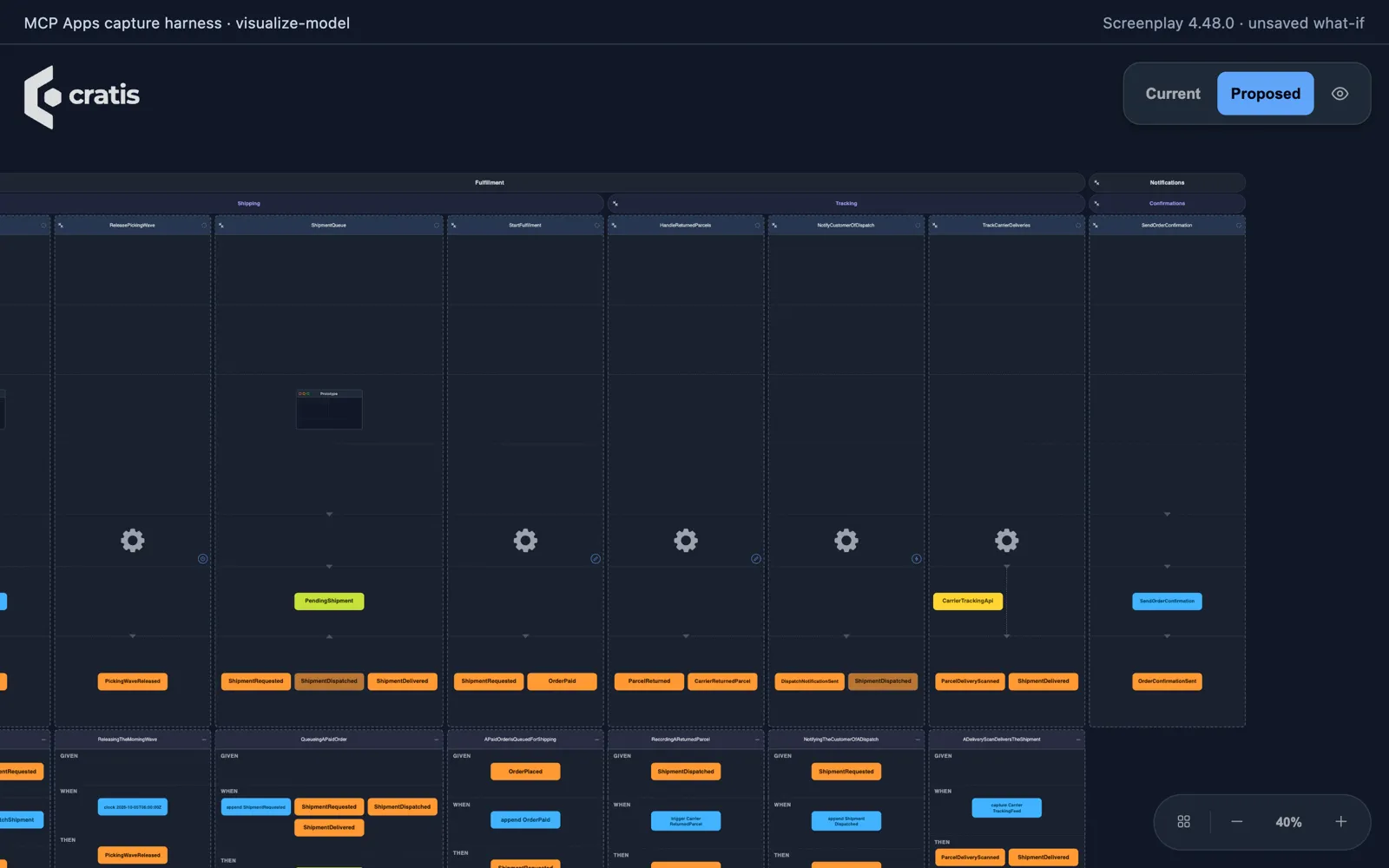
Captured in a minimal MCP Apps test host (a local capture harness), not a commercial chat host. The capture uses a single-file Commerce adaptation and an unsaved what-if sketch.
Which clients show the board
Section titled “Which clients show the board”The board is an MCP App: an HTML view the host draws inside the conversation. The
server offers it, as the visualize-model tool, only to hosts that advertise the MCP
Apps extension (io.modelcontextprotocol/ui) when they connect. Other clients see
the server’s usual tools, without visualize-model.
| Client | Draws the board |
|---|---|
| Claude Desktop | Yes |
| GitHub Copilot in VS Code | Yes |
| Claude Code | No, it is a terminal client |
| Codex | Not listed by the MCP Apps documentation as a host that draws views |
The MCP Apps documentation keeps the current list of hosts. In a client that does not draw the board, use the VS Code extension to see a model, and keep using Explore a model in the terminal.
The board is always drawn in its dark theme, even when the host asks for a light one. Its labels are colored for a dark surface, the same as in Studio’s viewer and the VS Code extension, and would be unreadable on a light background. In a light-themed chat it shows as a dark panel.
Show the model on disk
Section titled “Show the model on disk”Show me the application as an event model board.The assistant calls visualize-model without arguments. The board shows every
.play document under the server root, compiled as one application. The model
receives a short summary, such as how many slices, events, reactions and errors the board
shows. The documents themselves go only to the board.
The board has the Cratis logo in its upper left and its toolbar in its upper right. View sets the detail level, whether properties are shown and whether connections are drawn as arrows or lines. Where the host allows it, the toolbar also draws the board again from disk and switches to fullscreen.
The board follows the model on disk. While it is on screen it checks every couple of seconds and draws again when a file changed, whether the assistant applied a change or you edited a file by hand. Open it fullscreen and keep prompting: each applied change shows up on its own. A proposal you are looking at stays until the files change, and then the board shows the application as it is. The refresh button in the toolbar draws it again at once, and reports why when it cannot.
Hosts that do not let a view call the server cannot follow the files. Ask for the board again there; every call draws the model as it is at that moment.
Dependency map
Section titled “Dependency map”Choose Map beside Board to inspect module and feature dependencies. The map follows Current or Proposed, including what-if sketches. Modules are columns in suggested producer-first order, features sit inside them, and imported bounded contexts appear on the right. Arrows run from consumer to producer.
Choose edges between Modules or Features. The initial filters show uses facts from, reacts to, and decides from; enable the other kinds when needed. Edge labels count slice pairs. Select an edge to see the references under each slice pair, with their kind, name and source location. Tab moves into the drawing; arrow keys move between nodes and edges, Enter selects, and Escape clears. Choose Board to return to the timeline. The map does not change the model or highlight the board, and inferred dependencies do not prove executable readiness.
If the board cannot read or draw the model, Board and Map stay in the toolbar. The Board view says why, and the Map stays available when the dependencies were compiled. A failure in one view leaves the other in place. If compiling gives no map, the Map view says it is unavailable. A selection stays when the view refreshes, as long as the item still exists, and switching between Current and Proposed clears it.
See what a proposal would change
Section titled “See what a proposal would change”Ask for a change, and ask to see it before it is applied:
Add a ReturnBook slice to the Lending module that produces BookReturned. Proposeit, then show me the board for that proposal so I can see what it adds.After an authoring call returns a proposalId, the assistant calls visualize-model
with it:
{ "proposalId": "<proposalId>" }The board starts on the application as the proposal would leave it. Current and
Proposed in the toolbar switch between that and the application as it is. What
both share keeps its place, so the difference is what moves. The summary lists
the modules, features, slices, commands, events, read models, screens and reactions
the proposal adds and removes. Nothing is written: review and apply the proposal
as described in Edit a model.
Sketch a what-if
Section titled “Sketch a what-if”To see how a piece of functionality could look before shaping it into a proposal, ask for a sketch:
Without changing anything, sketch what a Reservations feature could look like nextto the existing Lending module, and show it on the board. Do not propose it yet.The assistant passes whole .play documents as a sketch, with paths relative
to the model root. Multi-file sketches require Screenplay 4.59.1 or later, or a
CLI that bundles it; older versions such as 4.48.0 have sketch-path failures.
For a model whose complete source is application.play, this example replaces
that document for the view only:
{ "sketch": [ { "path": "application.play", "source": "module Orders\n feature Returns\n slice StateChange RegisterReturn\n command RegisterReturn\n produces ReturnRegistered\n event ReturnRegistered\n" } ]}Each document replaces the one at its path, or is added when there is none. The
sketch is drawn over the documents on disk exactly as a proposal is, with the same
Current and Proposed switch and the same summary. It is never validated as a
proposal, never kept, and never written. A sketch that does not compile is drawn
as far as it can be read, with the number of errors shown on the board. Pass
either proposalId or sketch, not both.
Ask for the board again after each change to the sketch or the model: every call draws a new board, from the model as it is at that moment.
Compare with the VS Code extension
Section titled “Compare with the VS Code extension”| MCP board | VS Code extension | |
|---|---|---|
| Opens from | A prompt in the conversation | A .play file |
| Follows your edits | Polls disk when the host allows server calls; otherwise redraws on request | Redraws as you type |
| Shows a proposal or sketch | Yes | No |
| Needs the MCP server | Yes | No |
Use the extension while you write, and the MCP board to review what an assistant is about to write.