

Get started with the Direct Agent Runner
In this tutorial you install the runner, connect it to Direct and approve it. When you finish, your machine is one of your organization’s runners.
Before you begin
Section titled “Before you begin”- Docker is installed and running. Check with
docker info. - You can sign in to Direct as a maintainer of your organization. Only maintainers can approve a runner.
1. Install the runner
Section titled “1. Install the runner”Pick the command for your system. Other options, including downloading the binary and starting the runner at login, are in Install the runner.
macOS and Linux with Homebrew
brew tap cratis/cratisbrew install direct-runnerWindows (PowerShell)
$version = (Invoke-RestMethod https://api.github.com/repos/Cratis/DirectPublic/releases/latest).tag_name.TrimStart('v')Invoke-WebRequest "https://github.com/Cratis/DirectPublic/releases/download/v$version/direct-runner-$version-win-x64.zip" -OutFile direct-runner.zipExpand-Archive direct-runner.zip -DestinationPath "$env:LOCALAPPDATA\direct-runner"2. Start the runner
Section titled “2. Start the runner”direct-runnerOn Windows, run & "$env:LOCALAPPDATA\direct-runner\direct-runner.exe".
The runner prints one line and keeps running:
Direct runner 1.0.0 - open http://127.0.0.1:7190 to connect it to Direct3. Connect it to Direct
Section titled “3. Connect it to Direct”Open http://127.0.0.1:7190. The runner’s page asks for the address of your Direct.
It is filled in with https://cratis.direct. Change it only if your organization runs its own Direct.
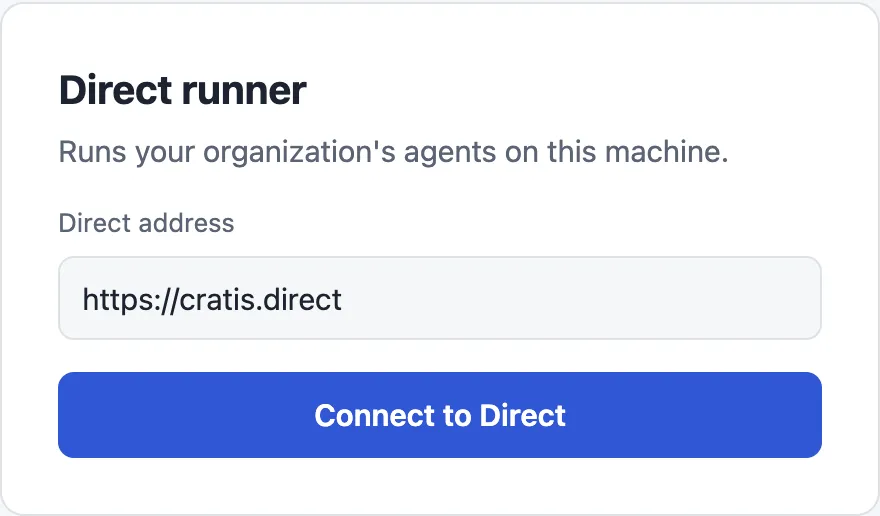
Select Connect to Direct. The runner asks Direct to approve this machine and shows a code. It also opens Direct’s approval page in a new browser tab.
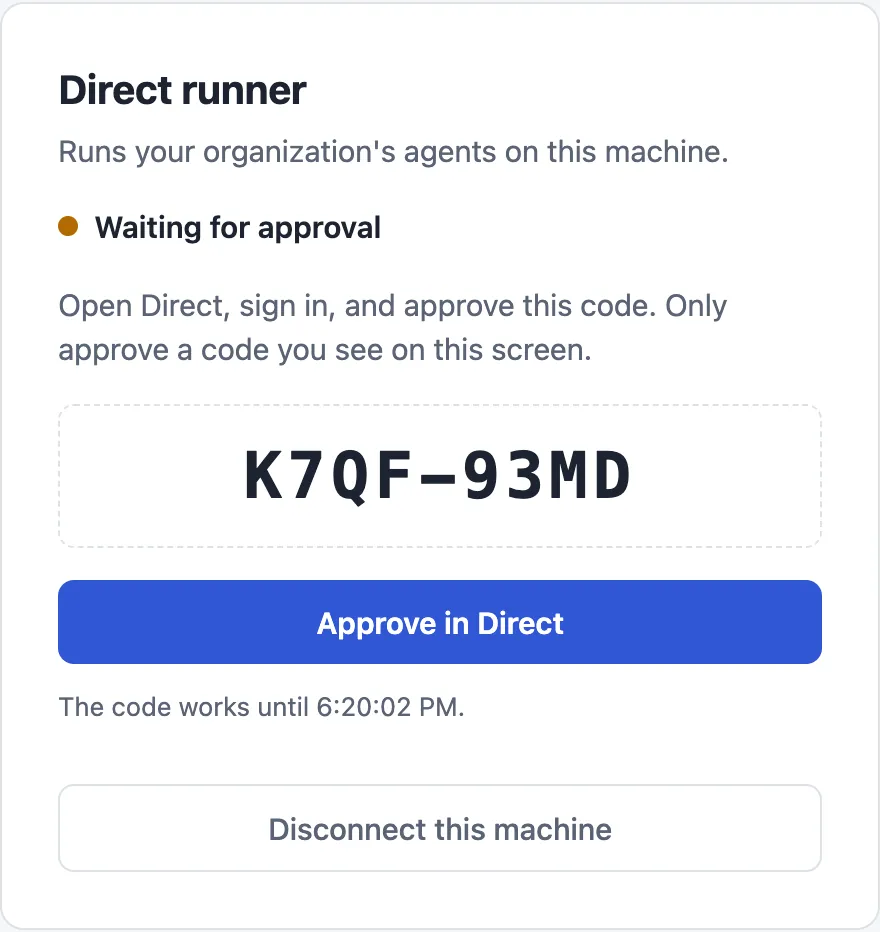
The code works for a limited time. The page shows when it stops working. If it expires, select Connect to Direct again for a new one.
4. Approve it in Direct
Section titled “4. Approve it in Direct”In the tab that opened, sign in to Direct if asked. The Approve a runner dialog opens, or select Approve in Direct on the runner’s page to open it again.
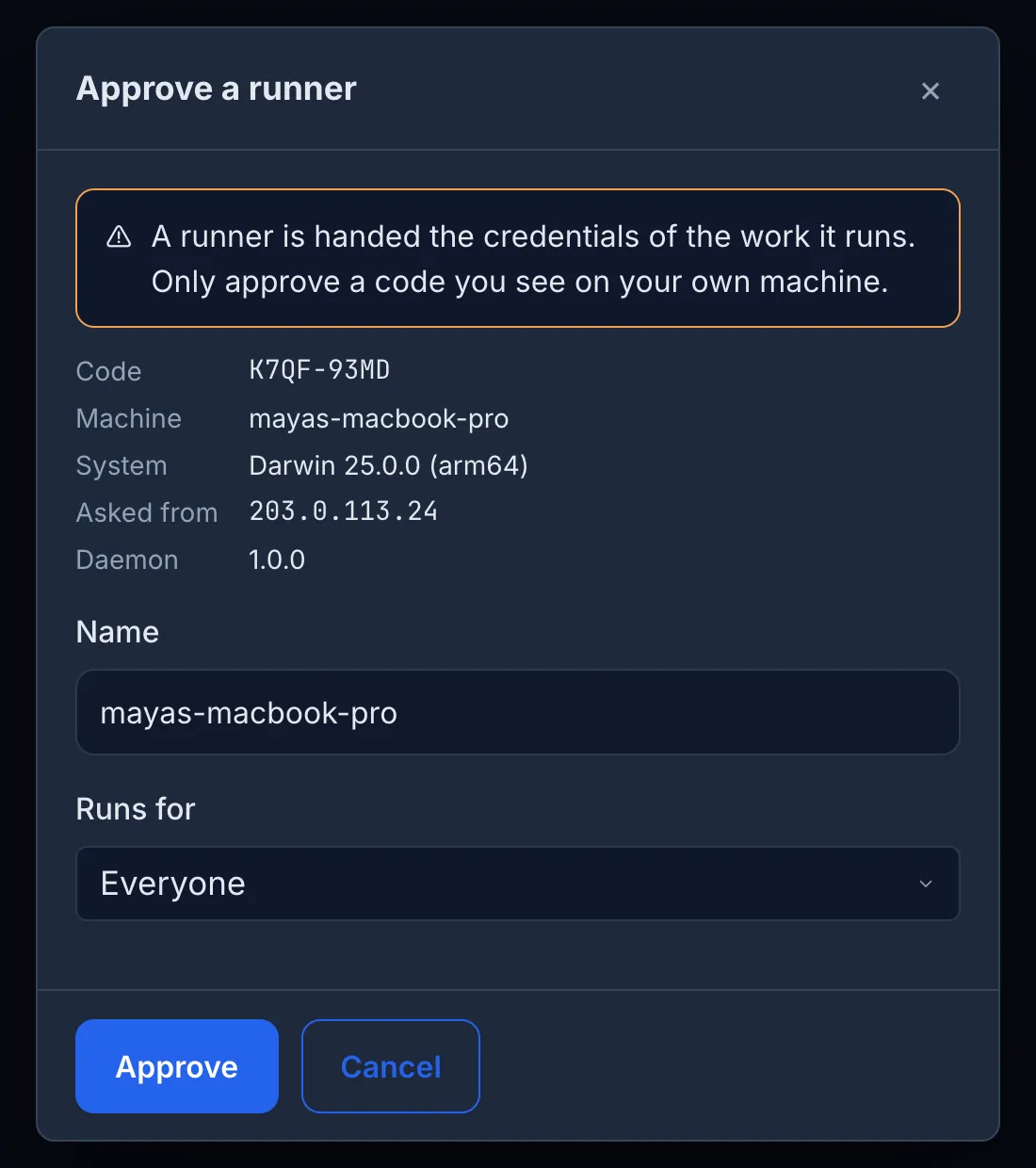
- Check that the Code matches the one on your runner’s page, and that Machine and Asked from are yours. Only approve a code you see on your own machine.
- Change Name to something you will recognize. It defaults to the machine’s host name.
- Leave Runs for on Everyone, or choose the people whose work this runner takes. You can change this later.
- Select Approve.
You can also reach the dialog yourself: in Direct, open Settings → Runners and open the link with the code.
5. Check that it is connected
Section titled “5. Check that it is connected”Your runner’s page changes to Connected.
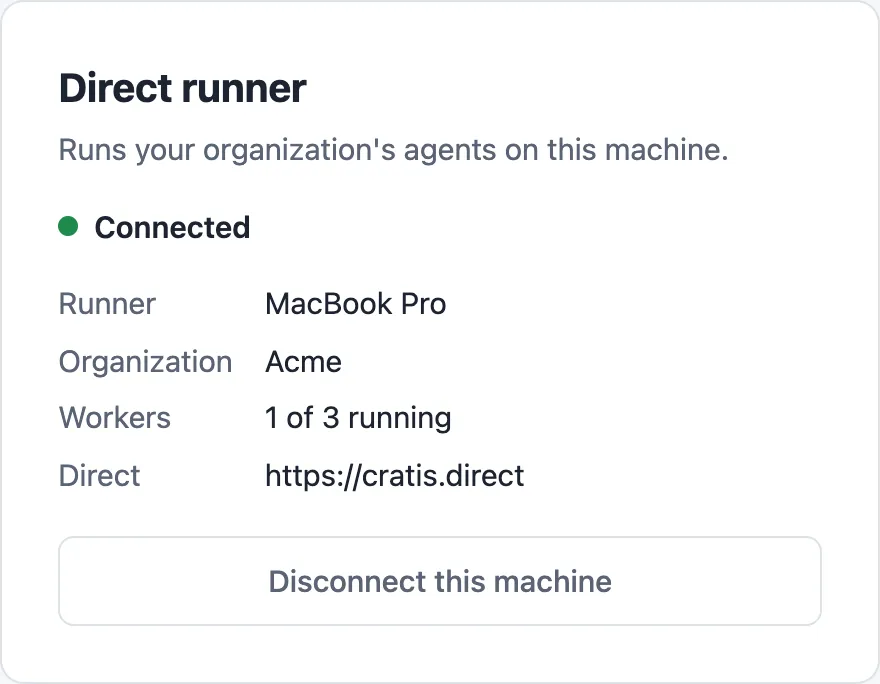
In Direct, Settings → Runners lists the runner next to the built-in Direct cluster, with a green dot, its operating system and how much of its CPU, memory and disk is in use.
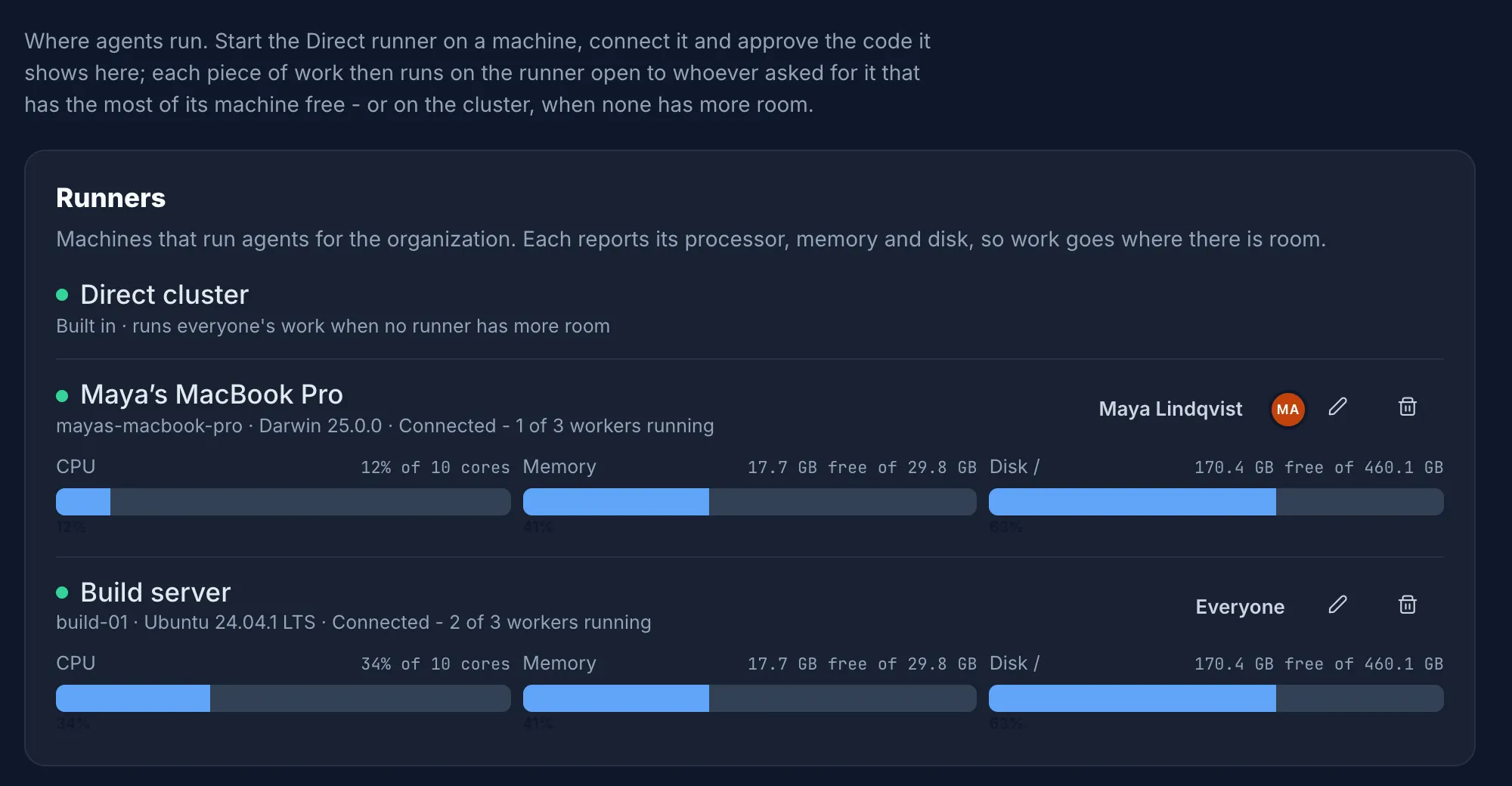
From now on, work that Direct schedules for the people your runner runs for starts on your machine whenever it
has the most room. You can watch the worker containers appear with docker ps; their names start with
cratis-ai-agent-.
Next steps
Section titled “Next steps”- Start the runner at login so it is there when work arrives.
- Choose who the runner runs for and change its settings.
- Troubleshooting if the page does not say Connected.